🟢 How to Connect Your WhatsApp Account
Connect WhatsApp Business with DigiTech Bot
Welcome to the DigiTech Bot WhatsApp Integration Guide.
Learn how to connect your WhatsApp Business Account with DigiTech Bot using Meta’s official WhatsApp Cloud API.
Available Connection Methods
📱 Mobile App Connection
Recommended for existing WhatsApp Business users.
☁️ One-Click Cloud API Setup
Best for new WhatsApp numbers dedicated to automation.
⚙️ Developer Portal Connection
Advanced setup for developers and technical users.
📌 Requirements Before You Start
⭐ Recommended Connection Method
For most DigiTech Bot users, we strongly recommend the WhatsApp Business Mobile App Connection method.
This method allows you to continue using your WhatsApp Business mobile application while enabling Cloud API automation and chatbot features.
📱 Method 1: WhatsApp Business Mobile App Connection (Recommended)
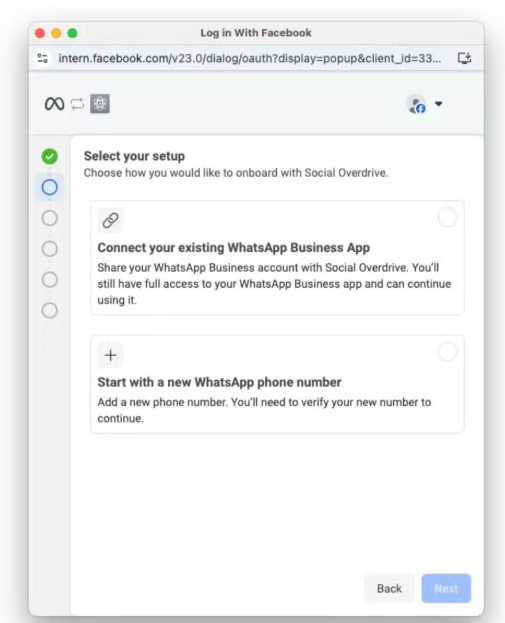
Meta now allows businesses to connect an existing WhatsApp Business account directly to the WhatsApp Business Platform while retaining mobile access.
You can continue using WhatsApp Business on your phone while also using DigiTech Bot automation features.
Step 1: Open DigiTech Bot Dashboard
Login to your DigiTech Bot account.
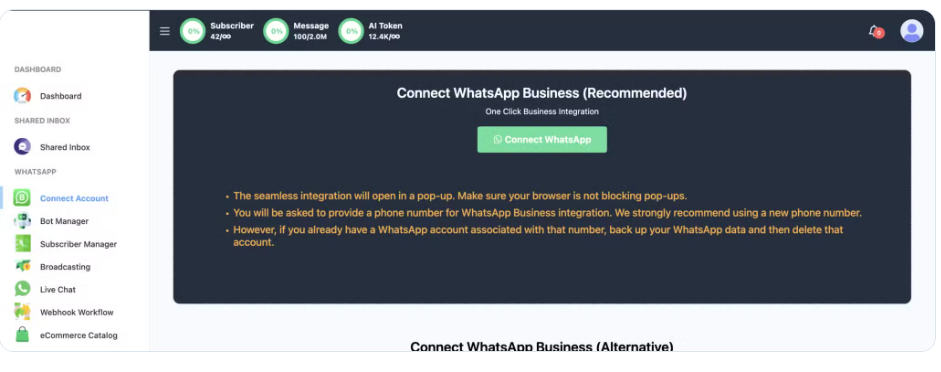
From the left sidebar menu, navigate to:
WhatsApp → Connect Account
This is the WhatsApp Connect Account page inside DigiTech Bot. Users can start the integration process by clicking the "Connect WhatsApp" button.
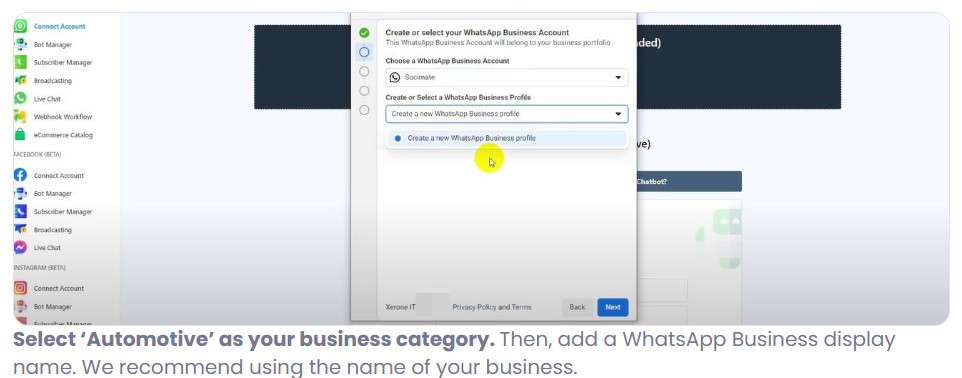
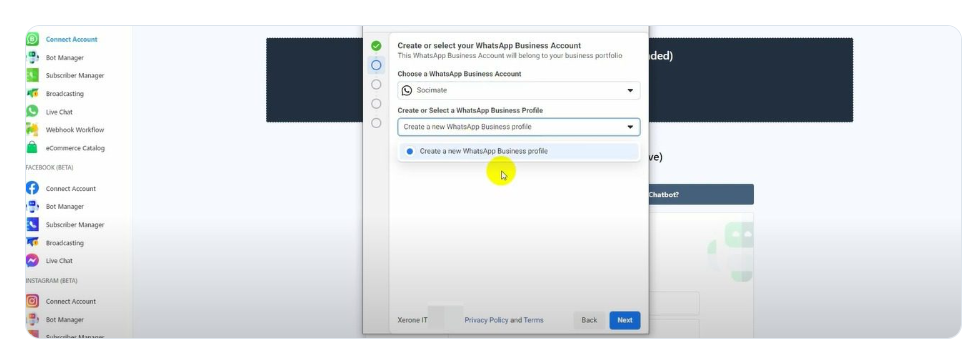
Create or Select WhatsApp Business Profile
Choose the WhatsApp Business Account that will be connected to DigiTech Bot.
If an existing WhatsApp Business Profile is available, select it from the dropdown list.
Otherwise, choose "Create a new WhatsApp Business Profile" and click Next to continue.
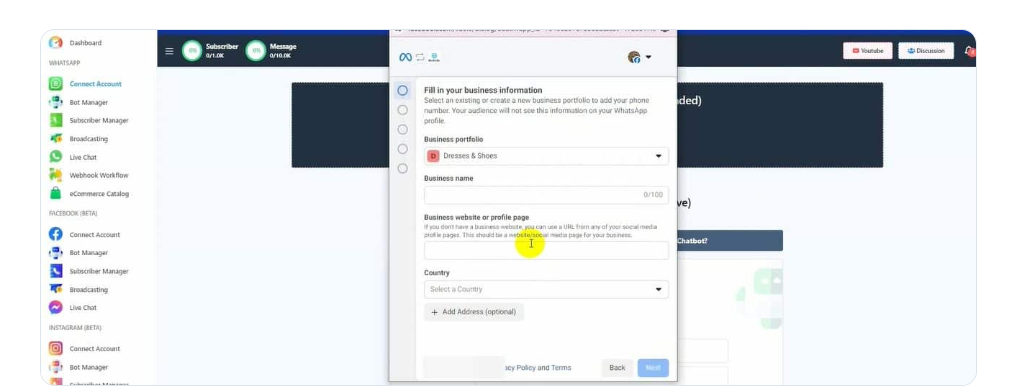
After providing your business information, Meta will ask you to create or select a WhatsApp Business Profile.
If you already have an existing WhatsApp Business Profile, select it from the dropdown list.
If no profile exists, choose:
Create a new WhatsApp Business Profile
Then click Next to continue.
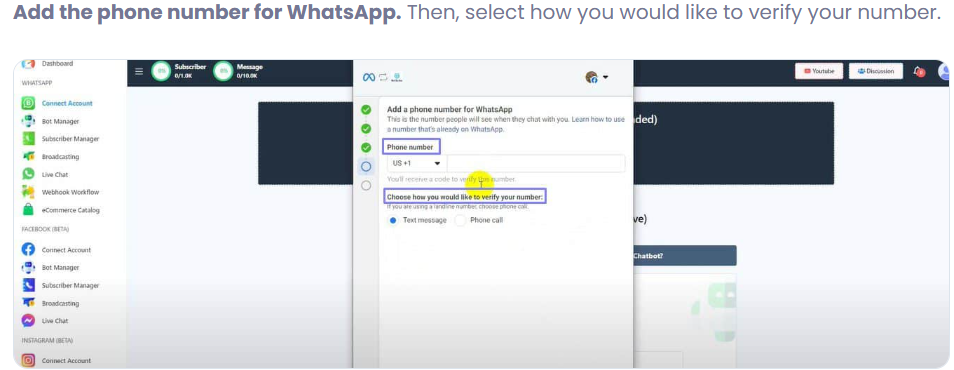
Add Your WhatsApp Phone Number
After creating your WhatsApp Business Profile, Meta will ask you to add the phone number that will be connected to your WhatsApp Business Platform account.
Enter your WhatsApp Business phone number and select your preferred verification method:
• Text Message (SMS)
• Phone Call
After entering the number, click Next.
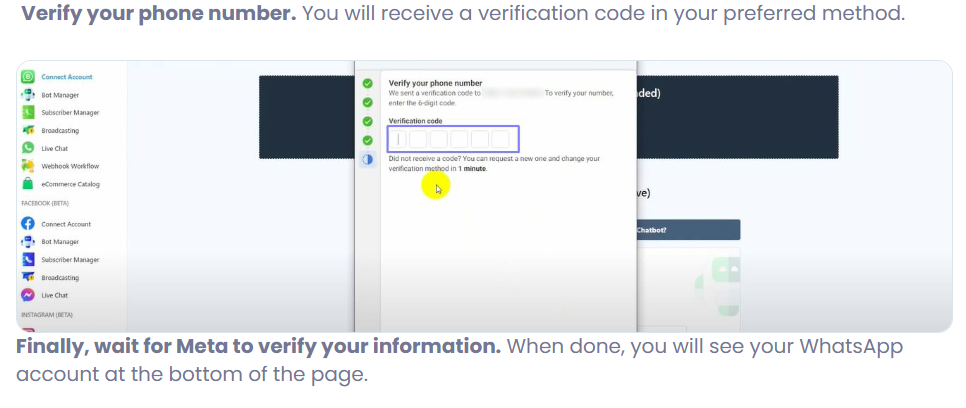
After submitting your phone number, Meta will send a verification code using the method you selected earlier.
Enter the 6-digit verification code in the verification field.
Once the code is validated successfully, Meta will proceed with the WhatsApp account setup automatically.