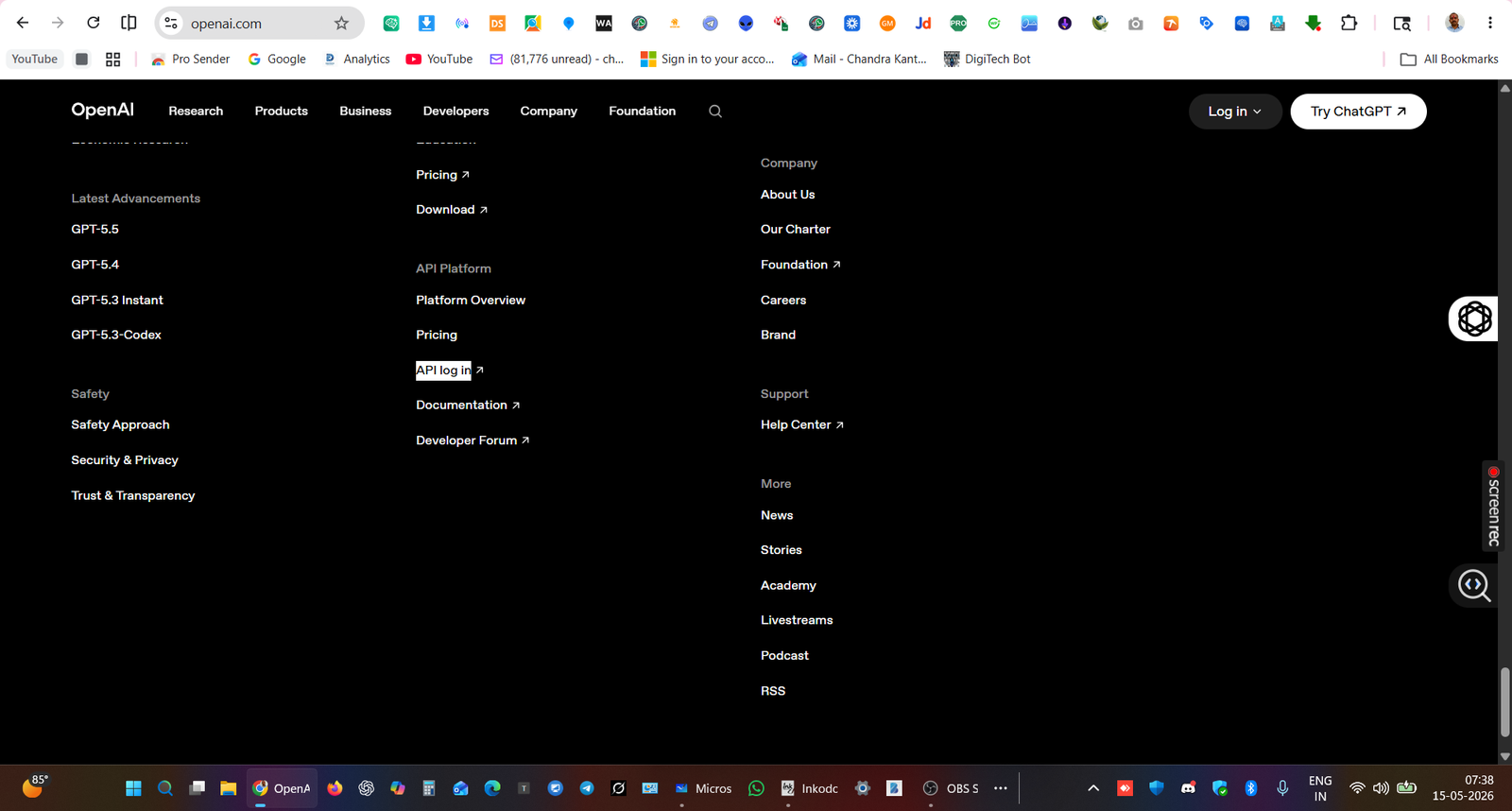
Go to the OpenAI website. Scroll down to the footer and click on API login. Create an account or sign up to an existing one. If you have a ChatGPT account, you can use the same credentials.
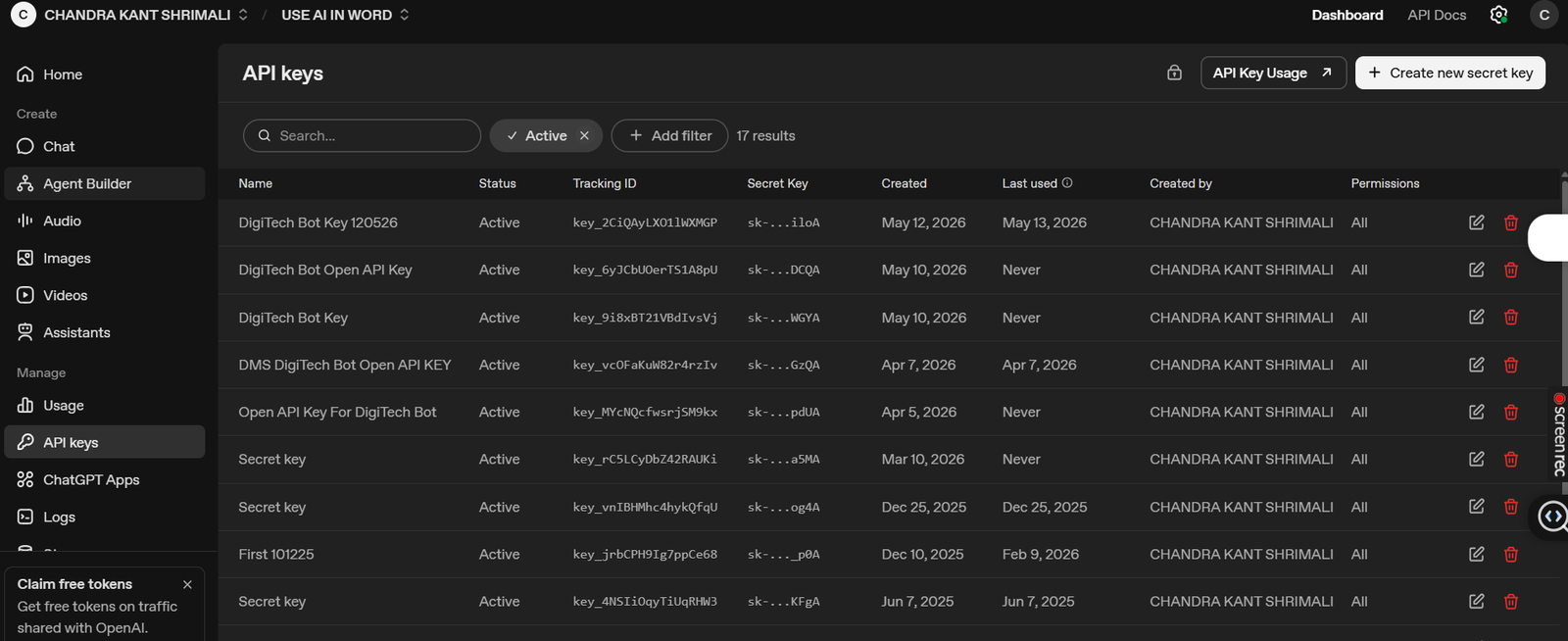
Now, when you click on “API Login”, Open API will ask for your login credentials. Log in using your existing credentials, or create new login credentials and then sign in. After logging into Open API, you will see an interface like this. In the left-side panel, you will find the “API Keys” option. Click on it, and you will see a screen similar to this as below:-
Now, on the upper-right side, you will find the “Create New Secret Key” option. As soon as you click on it, a new Open API key will be generated, which will be useful for us. You can also give it a suitable name so that it is easy to remember in the future.
Input your OpenAI API keys into the app
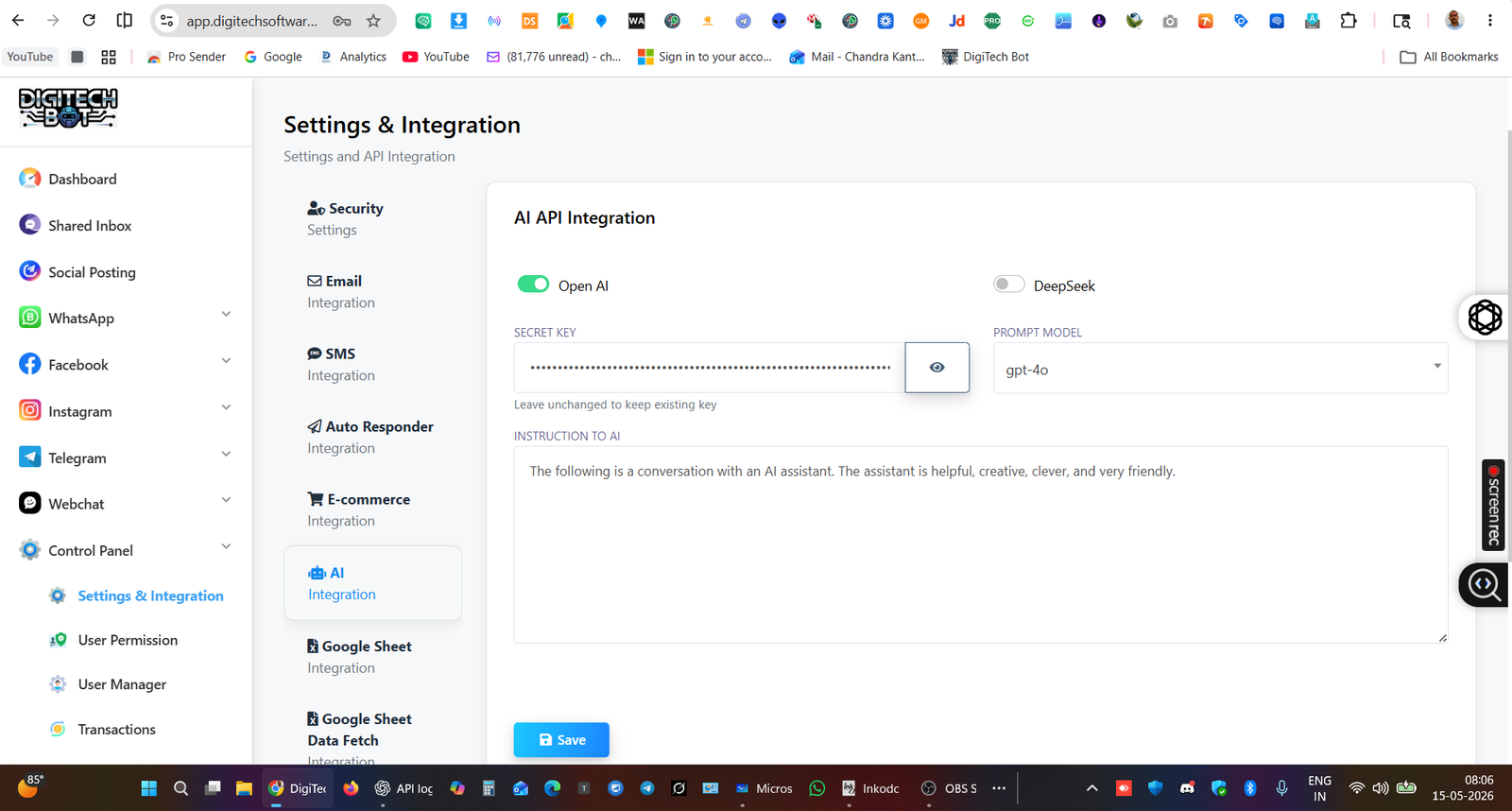
Now, we will open DigiTech Bot and go to the “Settings & Integration” option available in the left-side control panel. There, we will paste the API key and select the required GPT model according to our needs.The interface will look something like this:-
How to add credit to your OpenAI account
To power the AI tools and chatbots in your app, you’ve linked an OpenAI API key. This API key enables the app to access OpenAI’s models for generating responses, creating content, and more. However, for it to function, the account tied to the API key must have sufficient credit. OpenAI charges based on token usage, where a token is a piece of text—like a word or a punctuation mark. This guide will walk you through how to add credit to your OpenAI account and understand how token billing works to keep your AI tools running smoothly.
What are tokens?
Tokens are small chunks of text, such as words or punctuation. For example, the sentence “ChatGPT is great!” consists of 6 tokens. OpenAI charges based on the number of tokens used for input (what your users type) and output (the AI’s response). As for costs, OpenAI provides pricing details on their website, typically on a per-thousand-token basis. For example, 1,000 tokens might cost $0.002 depending on the model.
Add a payment method to your account
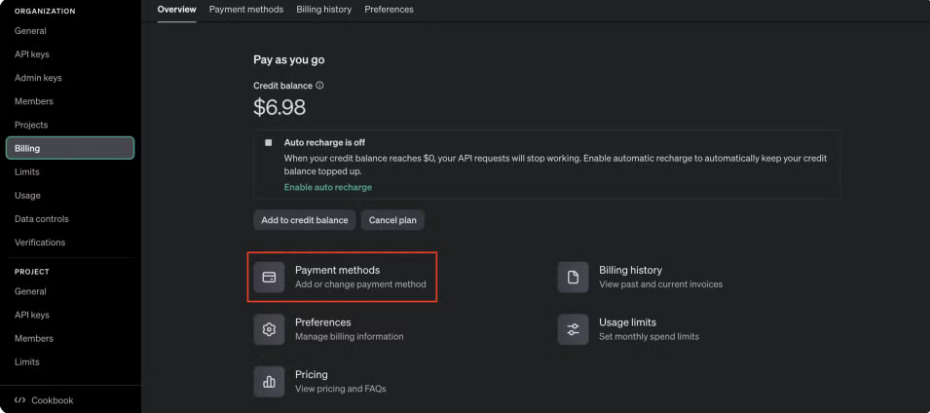
Log in to Your OpenAI Account. Visit https://platform.openai.com/ and use the credentials associated with your API key to log in. Navigate to the Billing Section.Once logged in, click on the Settings icon in the top-right corner, right before your profile picture. You will be directed to the Settings page. From the left sidebar, select ‘Billing’.
Add Payment Method:- In the Billing section, click ‘Add a payment method’. Enter your credit card or payment details and save them. You can add several payment methods and set one of them as default.
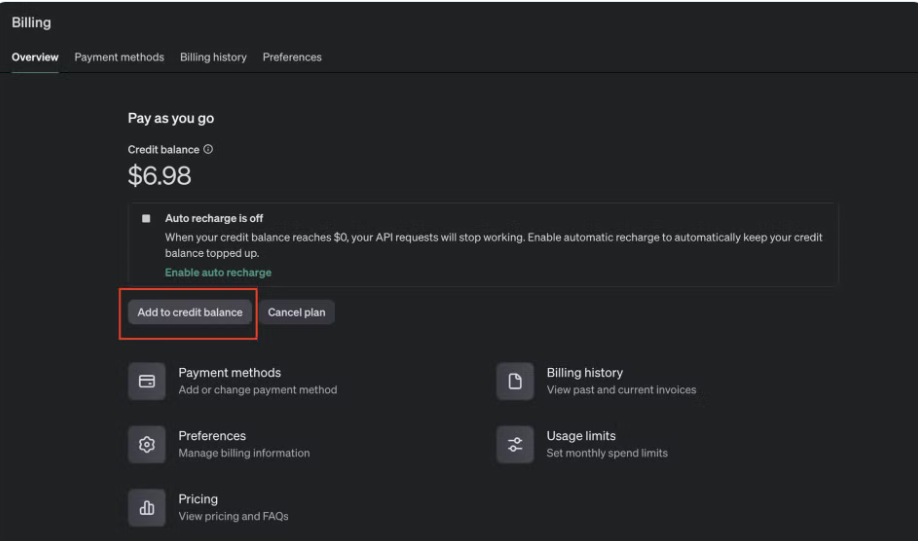
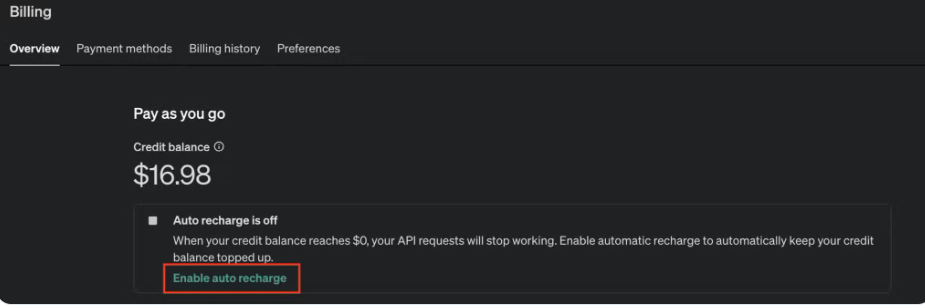
Add Credit. Go back to the Billing Overview page. Click on the ‘Add to credit balance’ button & also the auti recharge option is there.The auto-recharge system is useful because it ensures that the bots do not stop working when the credit balance runs out.
Monitor your usage
Open the Usage section. On the left sidebar, locate the ‘Usage’ tab. There you will find detailed graphs of your token spent on both monthly and project basis.
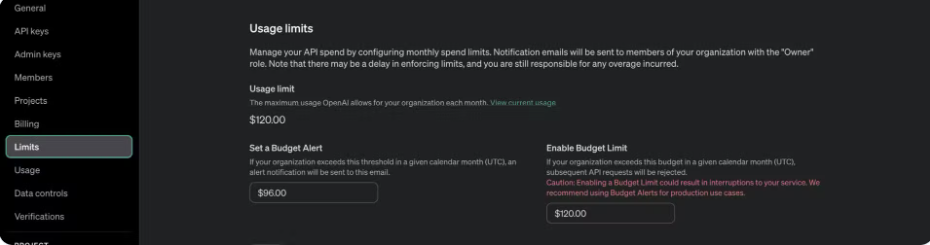
Set Limits. You can set usage limits and alerts to prevent unexpected overcharges by clicking on ‘Limits’ at the left sidebar and scrolling down. This is specially recommended if you have enabled auto recharge. Regularly check the remaining balance to ensure uninterrupted access to the API.